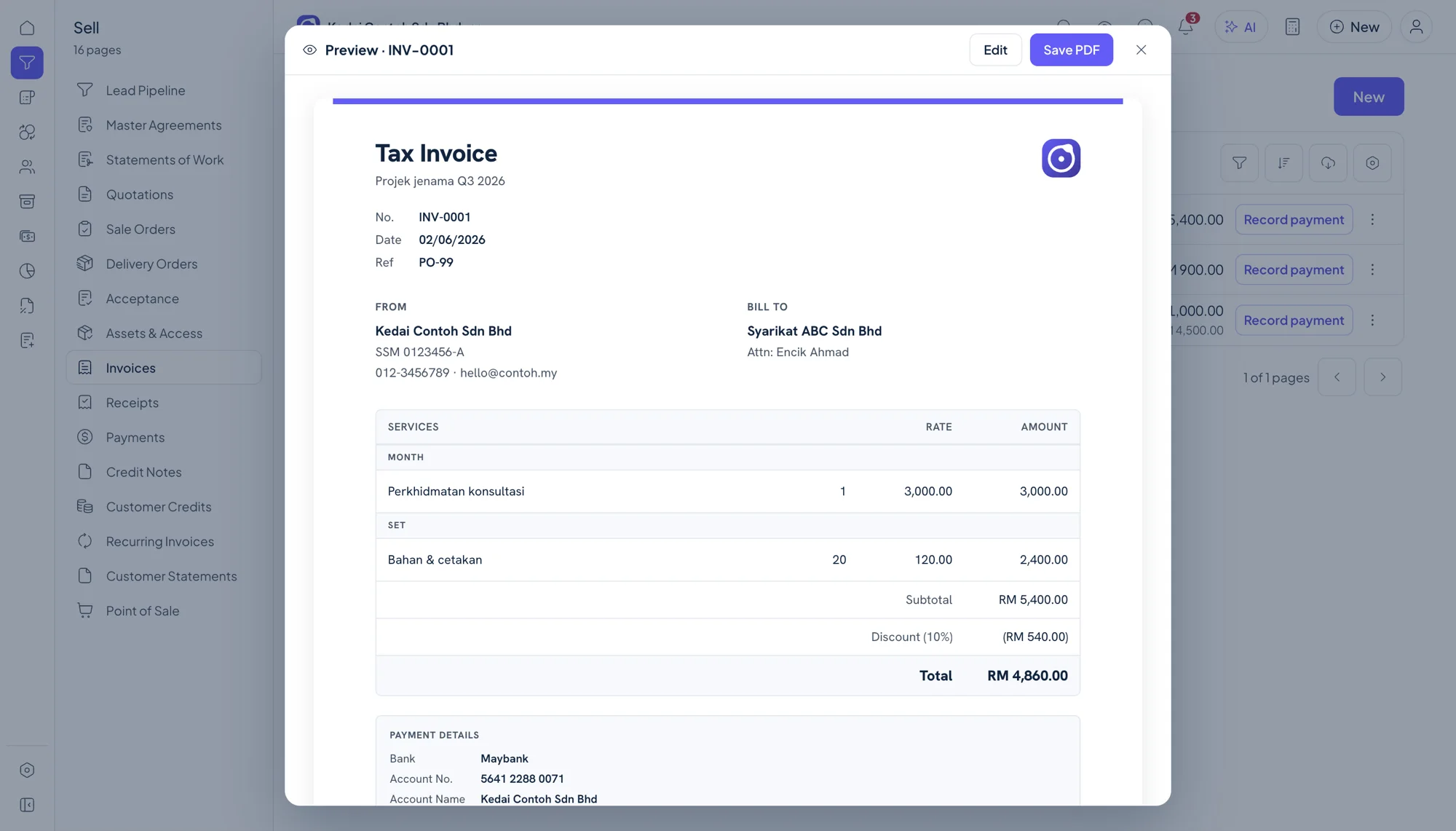
Prepare the required invoice details
Keep parties, lines, tax and classifications on the sales document before submission.
- Buyer details
- Lines and SST
- MyInvois classifications
Early-bird: RM 249.00 (normally RM 349.00) · 92 of 100 slots left Claim yours
e-Invoice · MyInvois · Malaysia
Orbit Finance keeps invoice details, MyInvois classifications, SST and submission status beside the accounting record. You can configure MyInvois credentials, submit an invoice, refresh its status and open the validation result from the invoice workflow.
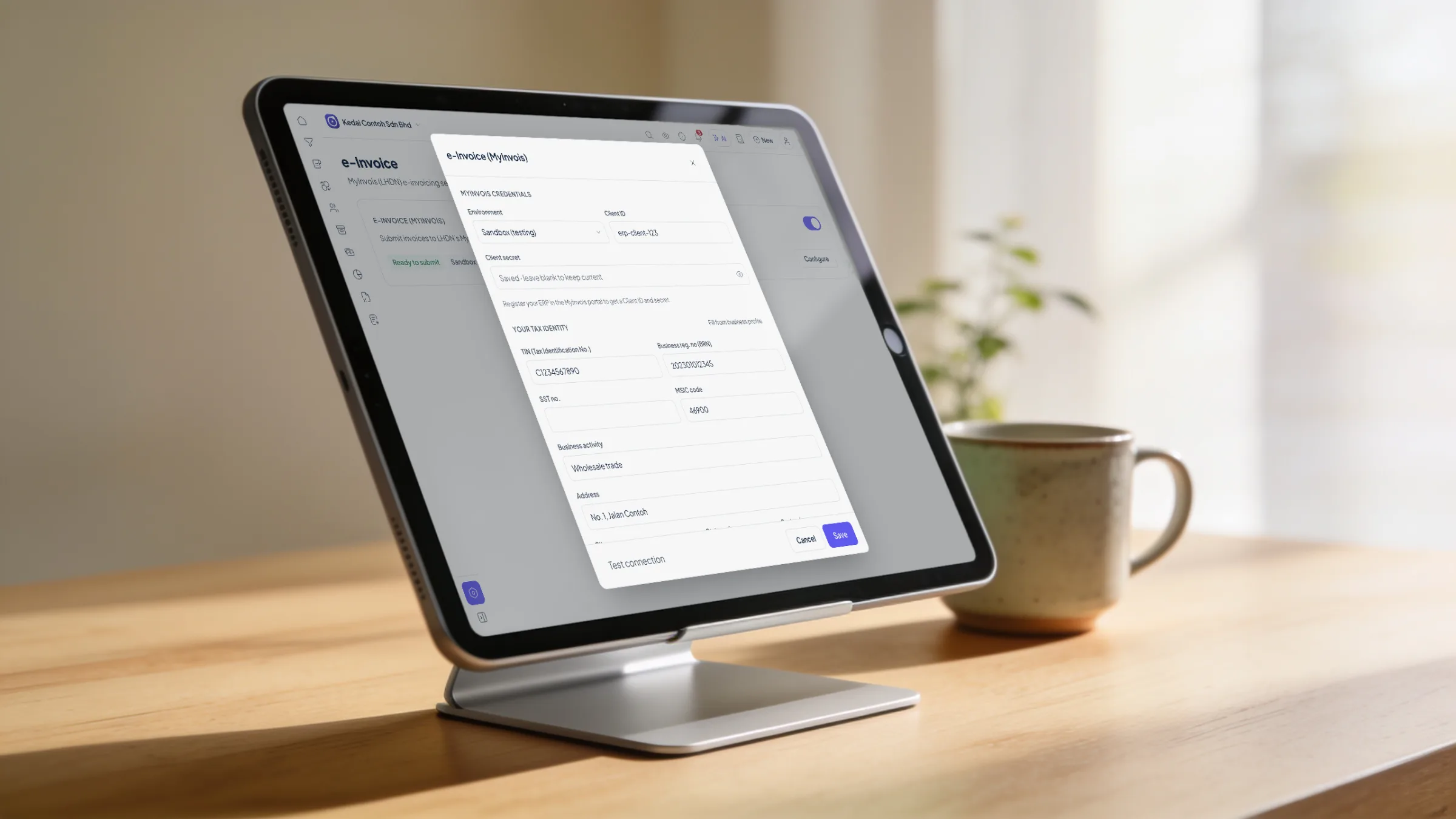
Orbit Finance connects invoice preparation with e-Invoice records and the underlying books. Complete the buyer and line details, choose classifications, configure MyInvois credentials, submit, then check the status and validation result without separating compliance records from the accounts.
Keep parties, lines, tax and classifications on the sales document before submission.
Configure MyInvois credentials, submit an invoice, refresh its status and open the validation result.
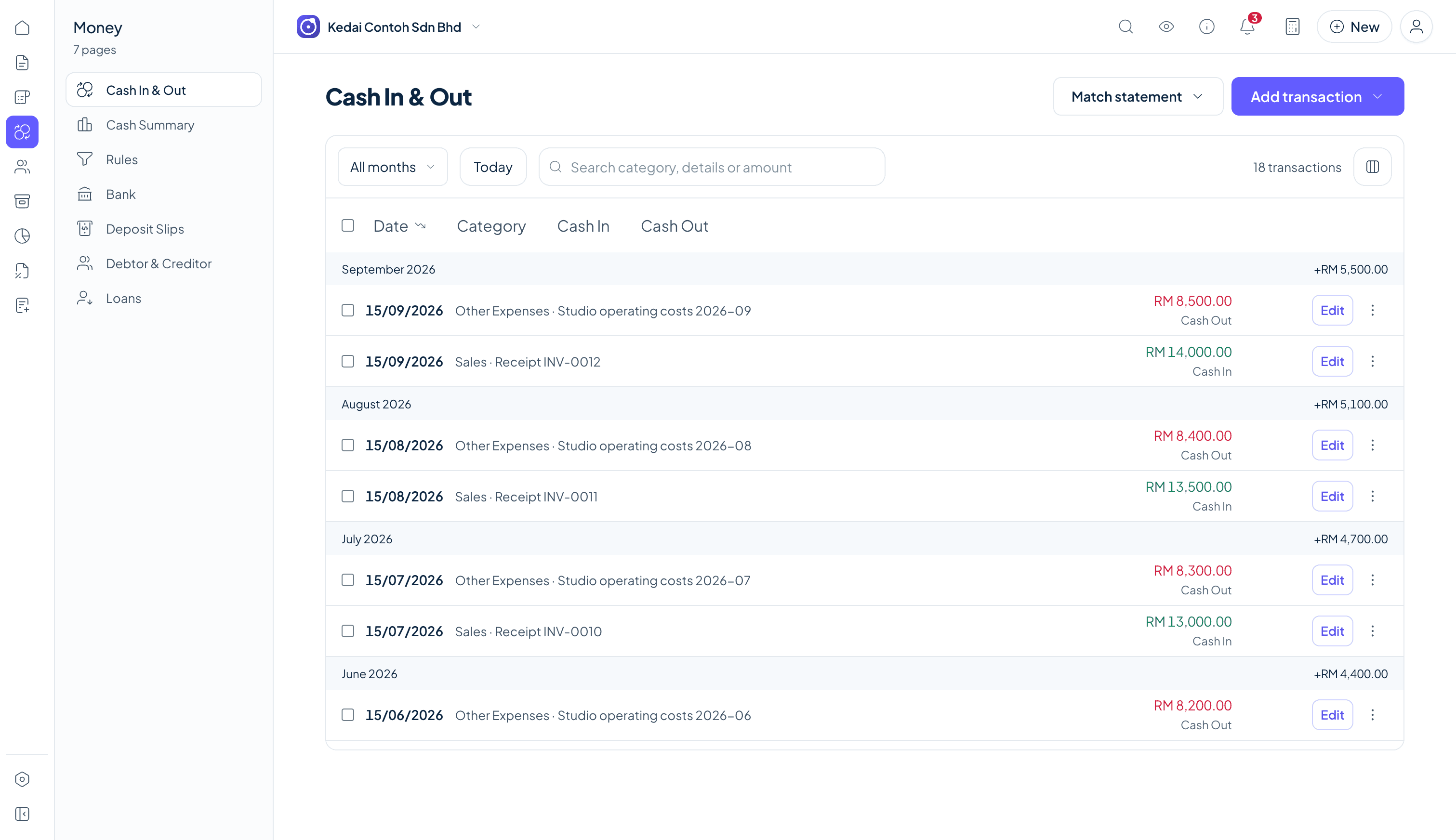
Payments and reconciliation remain connected to the books instead of an isolated e-Invoice file.
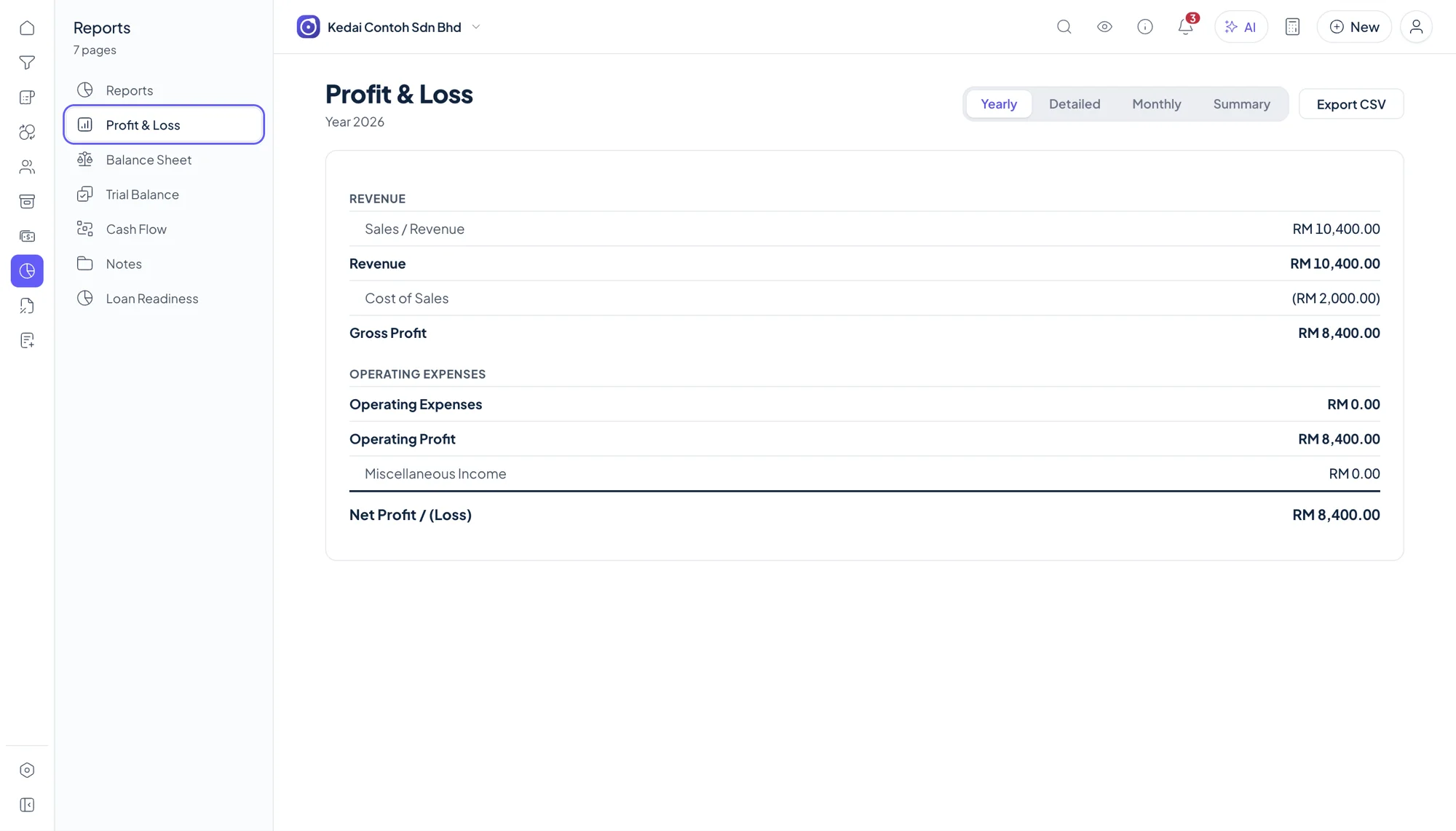
Statements use the same books that support the invoices and compliance records.
Enter buyer details, lines, SST and the relevant classifications.
Set the credentials needed for the MyInvois connection.
Use the submission action from the invoice workflow.
Refresh the status and open the validation result for the record.
Core books remain local and work offline. Submission to MyInvois needs a connection.
The app includes the MyInvois classification list for e-Invoice lines.
No. SST fields are part of the relevant invoice and bill records.
Yes. The workflow exposes status and the validation result for review.
Yes. You can configure credentials, submit invoices, refresh status and open validation results.
Yes. MyInvois classification codes are available for line records.
Yes. Only connected actions such as MyInvois submission need internet.
The core book file remains on your device by default.
Try the invoice workflow in a new set of books for 3 months, then buy a licence when you want to continue.