How to generate HR letters in Orbit HR
To generate an HR letter in Orbit HR, open People, choose the employee, then Records and Letters, and click Generate letter. Pick Bahasa Melayu or English and a template, fill in any details it asks for, check the merge preview, then click Generate PDF. The PDF is saved in that employee's document vault.
Where do I find Letters in Orbit HR?
- Open People and click the employee.
- Choose the Records tab, then Letters.
- Click Generate letter.
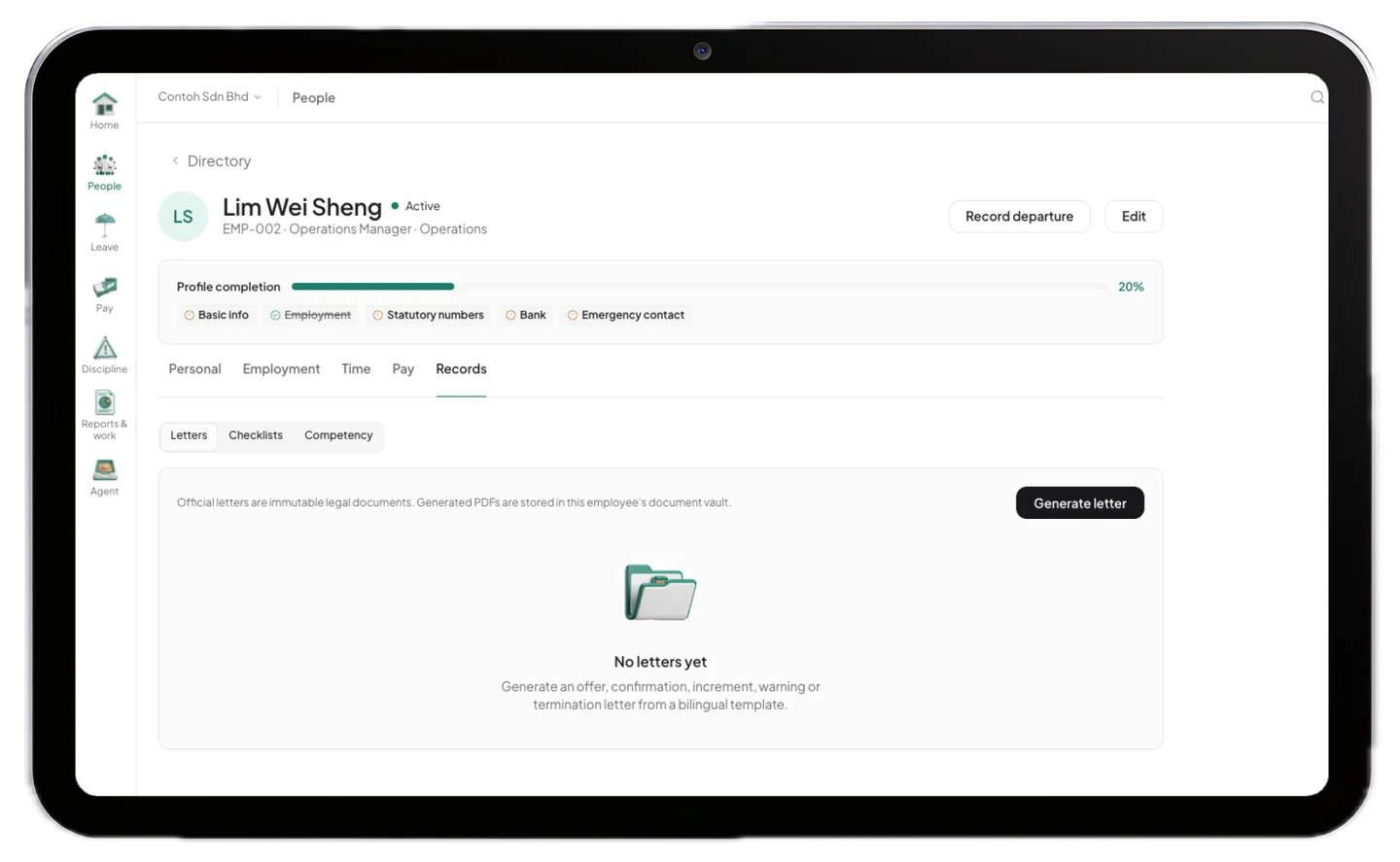
Each employee has their own list of letters, so you always see what was issued to whom and when.
How do I generate a letter?
- Choose the language: Bahasa Melayu or English.
- Pick a template, such as Salary increment letter.
- Fill in the letter details if the template asks for any, for example the new monthly salary in RM, an effective date or a reason.
- Click Preview merge.
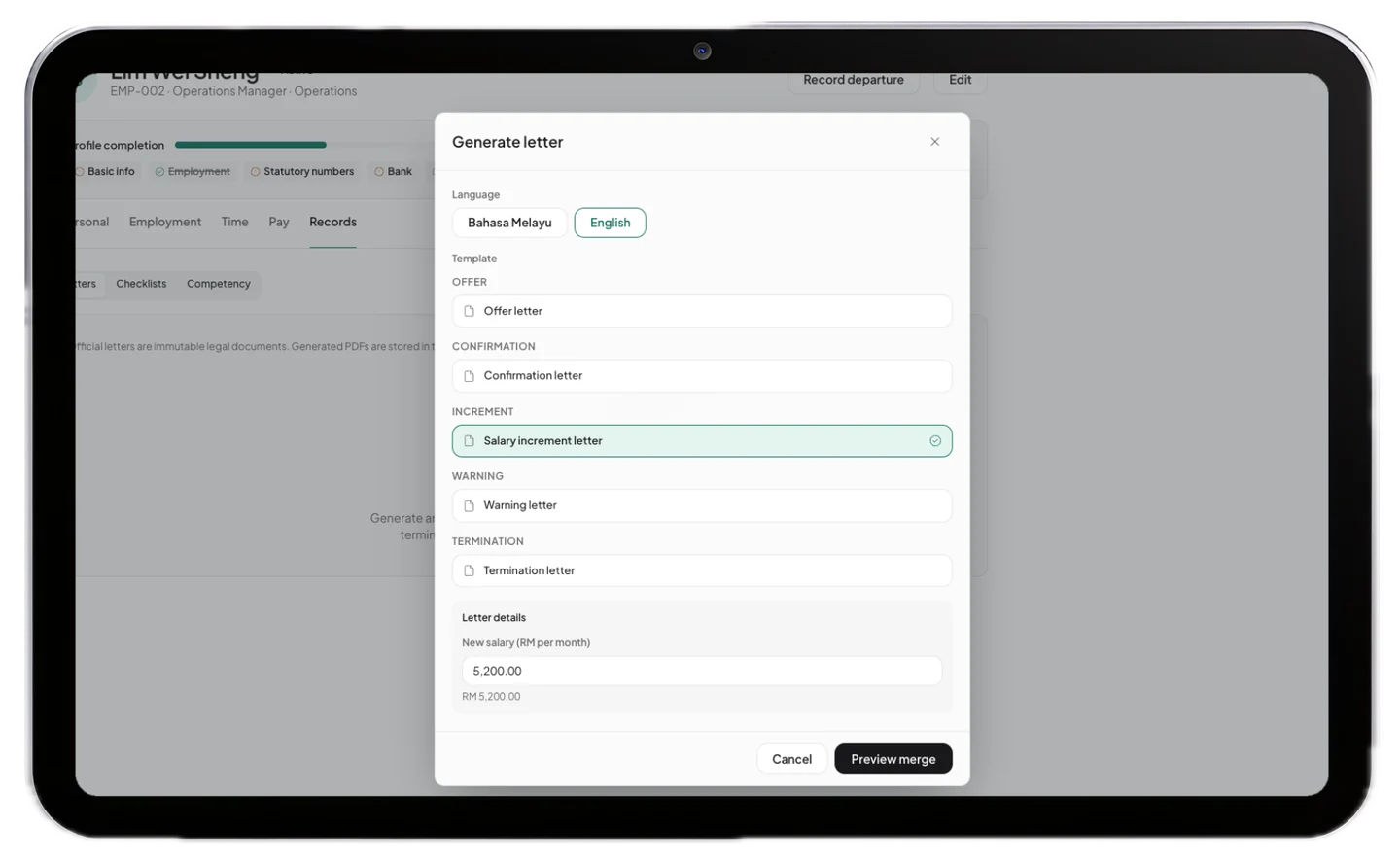
Everything else comes from your records: the employee's name, job title, department, current salary and dates, plus your company name. Keep the employee profile up to date and the letter fills itself in.
If you use the optional AI assistant on the desktop app, a Draft with AI button can suggest wording for text fields such as a reason. Always read and edit the draft before you continue.
How do I check the letter before it is final?
The merge preview shows the full letter with every value filled in. When all fields are complete it says All fields resolved. If anything is missing, the missing fields are listed and Generate PDF stays disabled until you fix them.
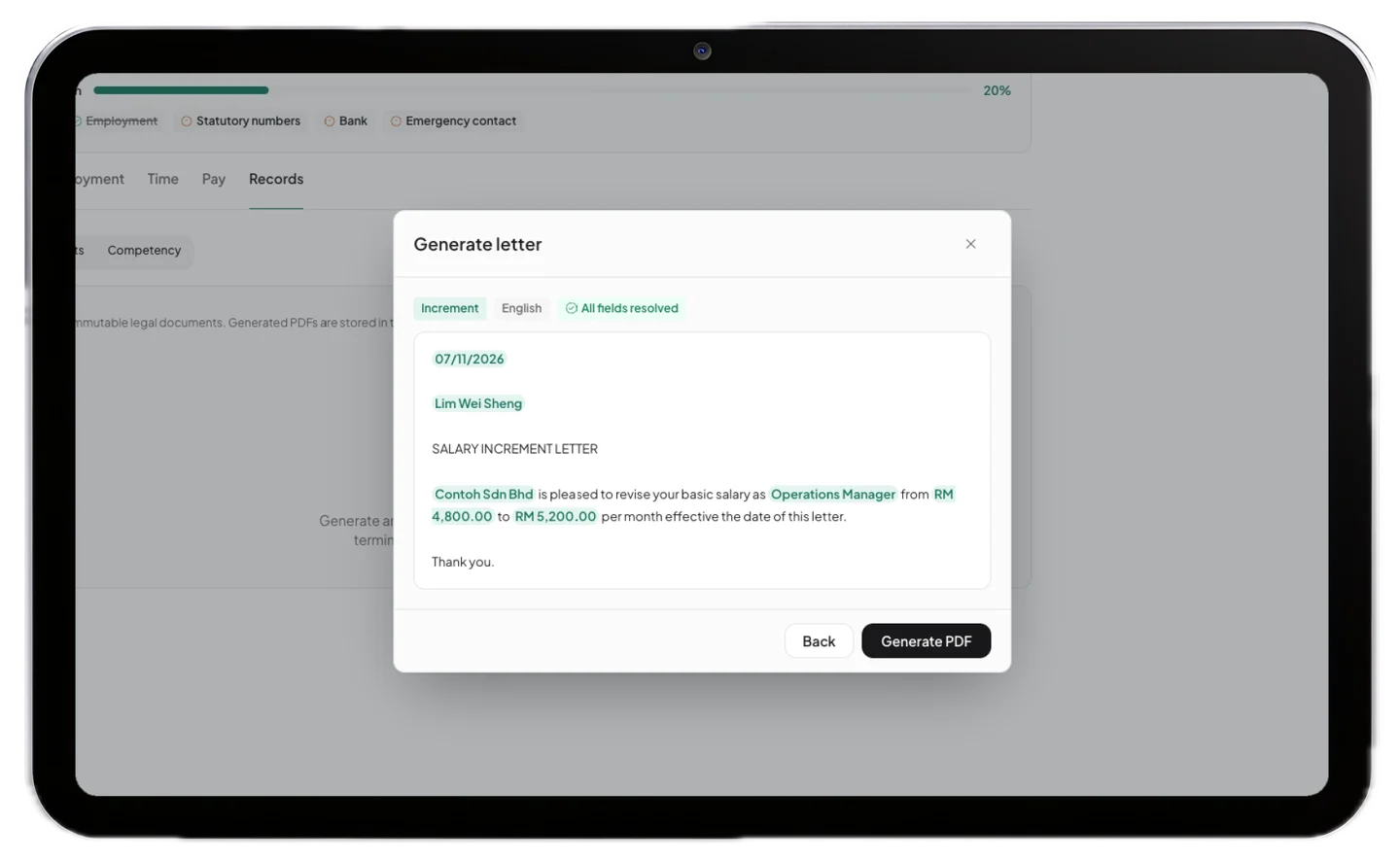
Click Generate PDF when it reads correctly. The letter is saved and can no longer be changed, so check names, amounts and dates first.
What happens after the letter is generated?
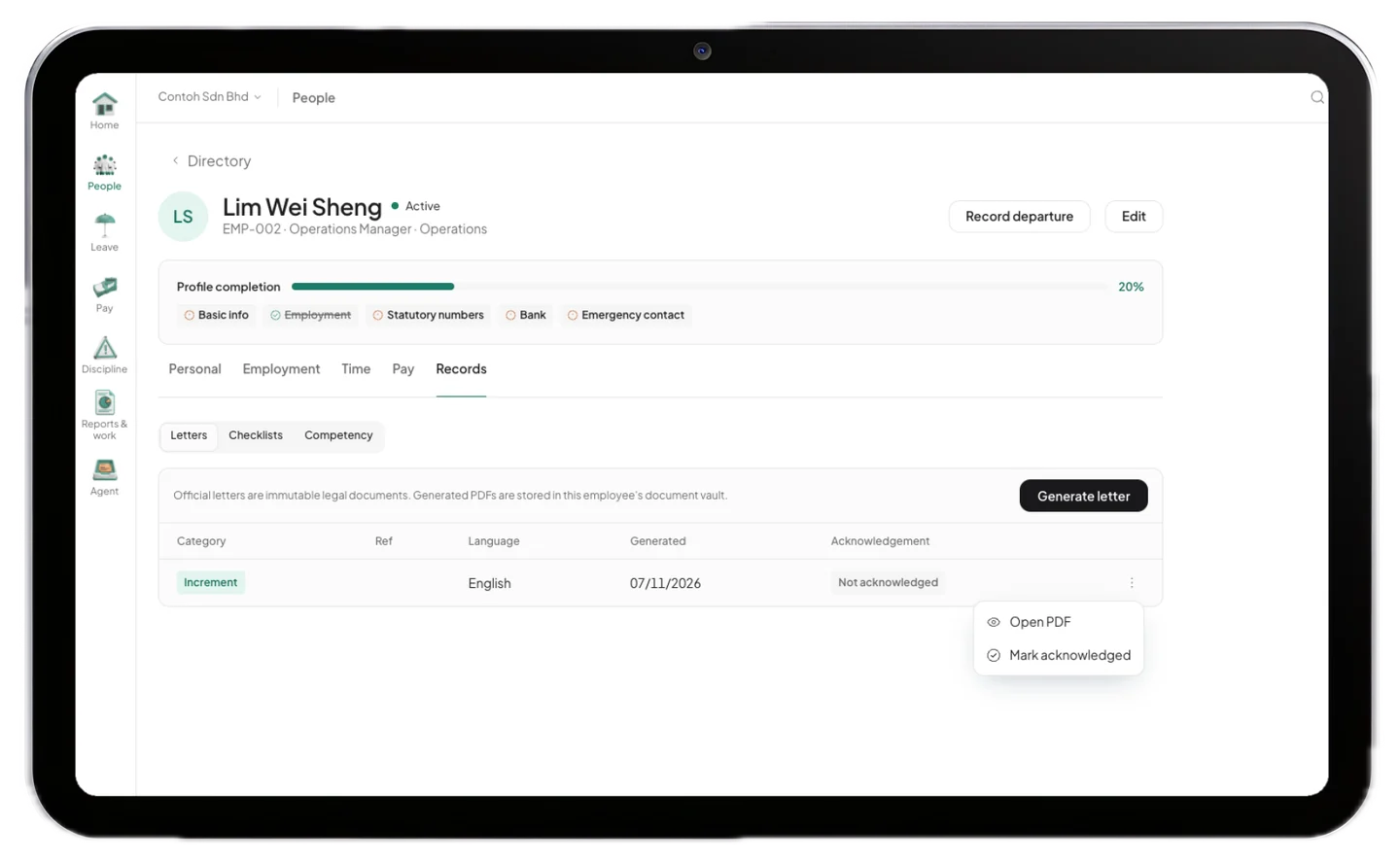
- The letter appears on the employee's Letters tab with its category, language, date and status.
- Open the row menu and choose Open PDF to view, print, save or share it.
- Once the employee has received it, choose Mark acknowledged so your records show it was delivered.
- Some templates, such as offers and contracts, need signatures instead. You sign for the company by typing your full name, and the employee signs from their own employee login in Orbit HR.
How do I change templates or create my own?
- Go to Settings, then Letters.
- Open a template's row menu and choose Edit to change its Bahasa Melayu and English text, or click New template.
- Insert merge fields, such as the employee name or company name, from the Merge fields list. Both languages must use the same fields.
- Save. Editing a built-in template creates your company's own copy, and Restore seed in the row menu brings back the original.
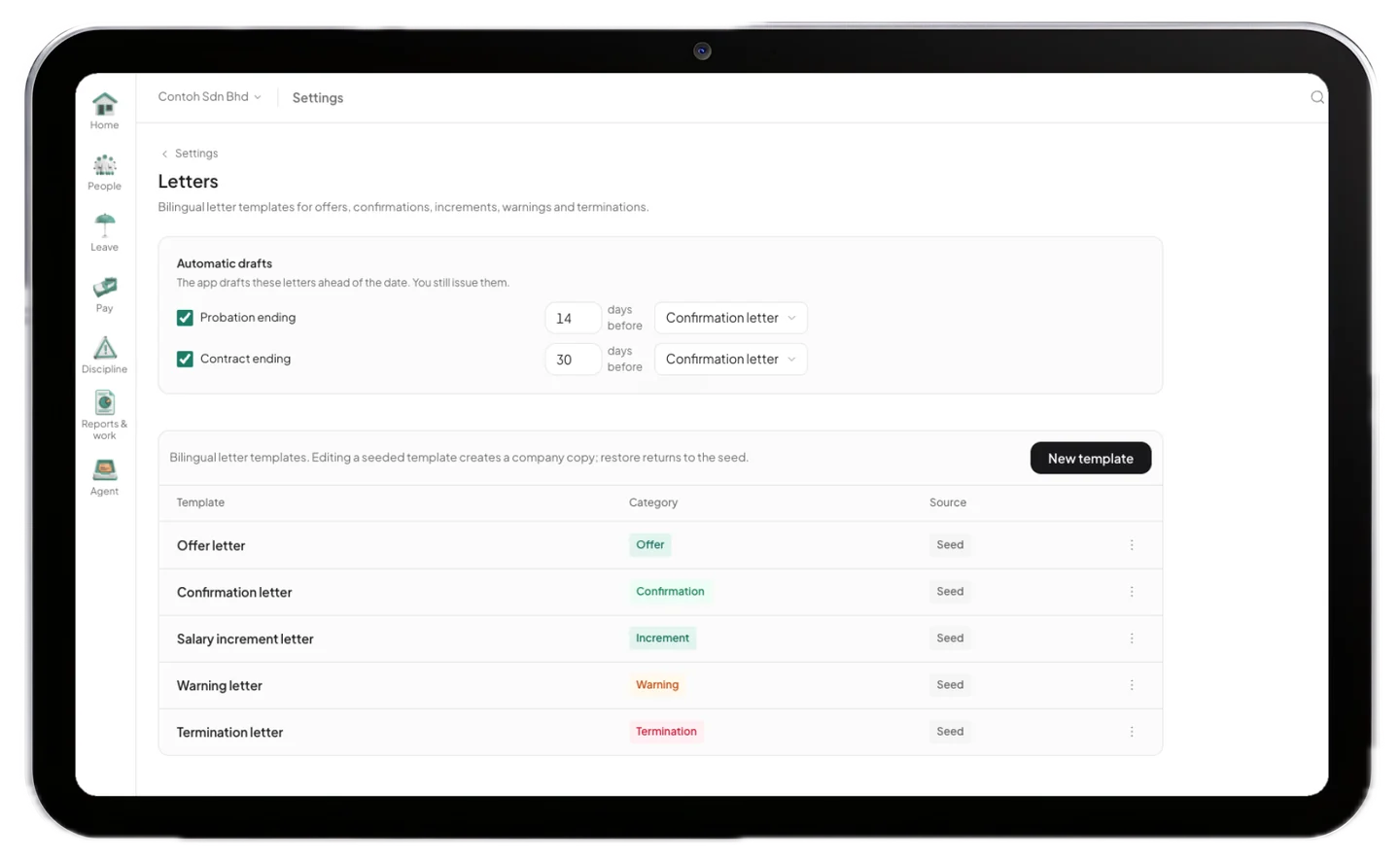
Automatic drafts at the top of the same screen let Orbit HR prepare letters ahead of a probation or contract end date, for example 14 days before. The draft waits for you in Documents, under Letter queue. Nothing is issued until you generate it.
What to remember
- Letters live on each employee: People, the employee, Records, Letters.
- Every letter can be issued in Bahasa Melayu or English from the same template.
- Check the merge preview carefully, because a generated letter cannot be edited.
- Send an issued letter by email with E-mail to employee (Orbit HR 0.9.8 and later). The PDF opens with the employee's IC number, digits only.
Important
Orbit HR templates are a starting point, not legal advice. Review each letter against your employment contracts, the Employment Act 1955 and other Malaysian employment law, and get legal advice for terminations, disciplinary action and retrenchment.
Payroll that does this for you
Orbit HR fills letters from the records you already keep, so issuing an offer or increment letter takes minutes, not an afternoon in a word processor.
RM 249.00 once, unlimited employees, no per-head fee. Orbit HR runs on your own Mac, Windows PC or phone and works offline, so employee data never leaves your office.