How to sync Orbit HR between your computer and phone
To sync Orbit HR between your computer and phone, create a free Turso database, paste its URL and token into Settings, Device sync on your main computer, and set a workspace passphrase. Then tap Pair another device, and on the new device choose Join an existing company, scan the QR and enter the same passphrase.
What do you need before you start?
- Orbit HR on your main computer (Mac or Windows), already set up with your company. This is the device you pair from.
- Orbit HR on the device you want to add: the Orbit HR phone app or a second computer. Install it, but do not set it up yet.
- A free Turso account. Turso is the online database that carries your encrypted changes between devices.
- About 10 minutes, and the internet on both devices while you pair.
Use the latest Orbit HR version on every device. Devices on different versions refuse to sync until they are all updated.
How does Orbit HR sync work?
Orbit HR is local-first. Each device keeps its own full copy of your company and keeps working offline. When you save a change, the device encrypts it and uploads it to your Turso database. The other devices download and decrypt it about every 20 seconds, and a phone sends its own changes about two seconds after you save.
The encryption key is protected by a workspace passphrase that you choose. Orbit never stores or sends that passphrase, so neither Orbit nor Turso can read your employee records. Practice companies never sync, so you can test freely. Device sync is free during launch.
Step 1: How do I create a free Turso database?
- Go to turso.tech and sign up for a free account.
- Create a new database. Give it a clear name such as orbit-hr and pick the region closest to your office.
- Open the database and copy its URL. It starts with libsql:// and ends with turso.io.
- Create a database token (Turso may label it Create Token or Generate Token) and copy it. Keep it somewhere safe, like a password manager.
Prefer the command line? Install the Turso CLI, then run these commands in order. The last two print the URL and the token.
- brew install tursodatabase/tap/turso (Mac) or follow Turso's install guide for Windows
- turso auth signup
- turso db create orbit-hr
- turso db show orbit-hr --url
- turso db tokens create orbit-hr
Use one database per company. Do not share the token with anyone outside your owner and HR team.
Step 2: How do I turn on sync on my main computer?
- Open Orbit HR on your main computer and go to Settings, then Device sync.
- Choose Turso.
- Paste the URL into Turso database URL and the token into Turso authentication token.
- Create a workspace passphrase of at least 8 characters. Write it down somewhere safe: every device needs it and it cannot be recovered.
- Click Connect sync.
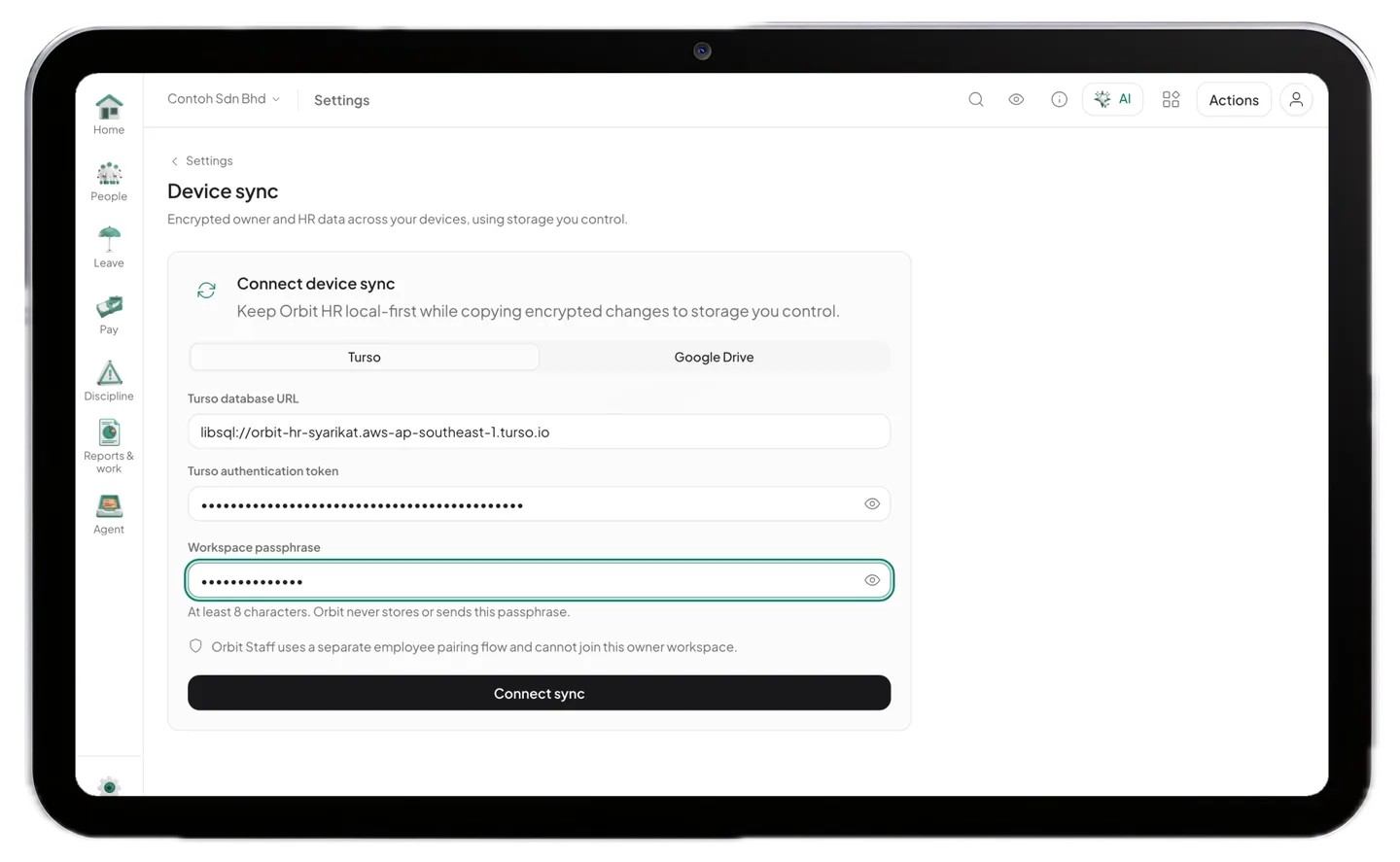
After a few seconds the screen shows Connected, the time of the last sync and zero pending changes. Your main computer is now uploading an encrypted copy of your company.
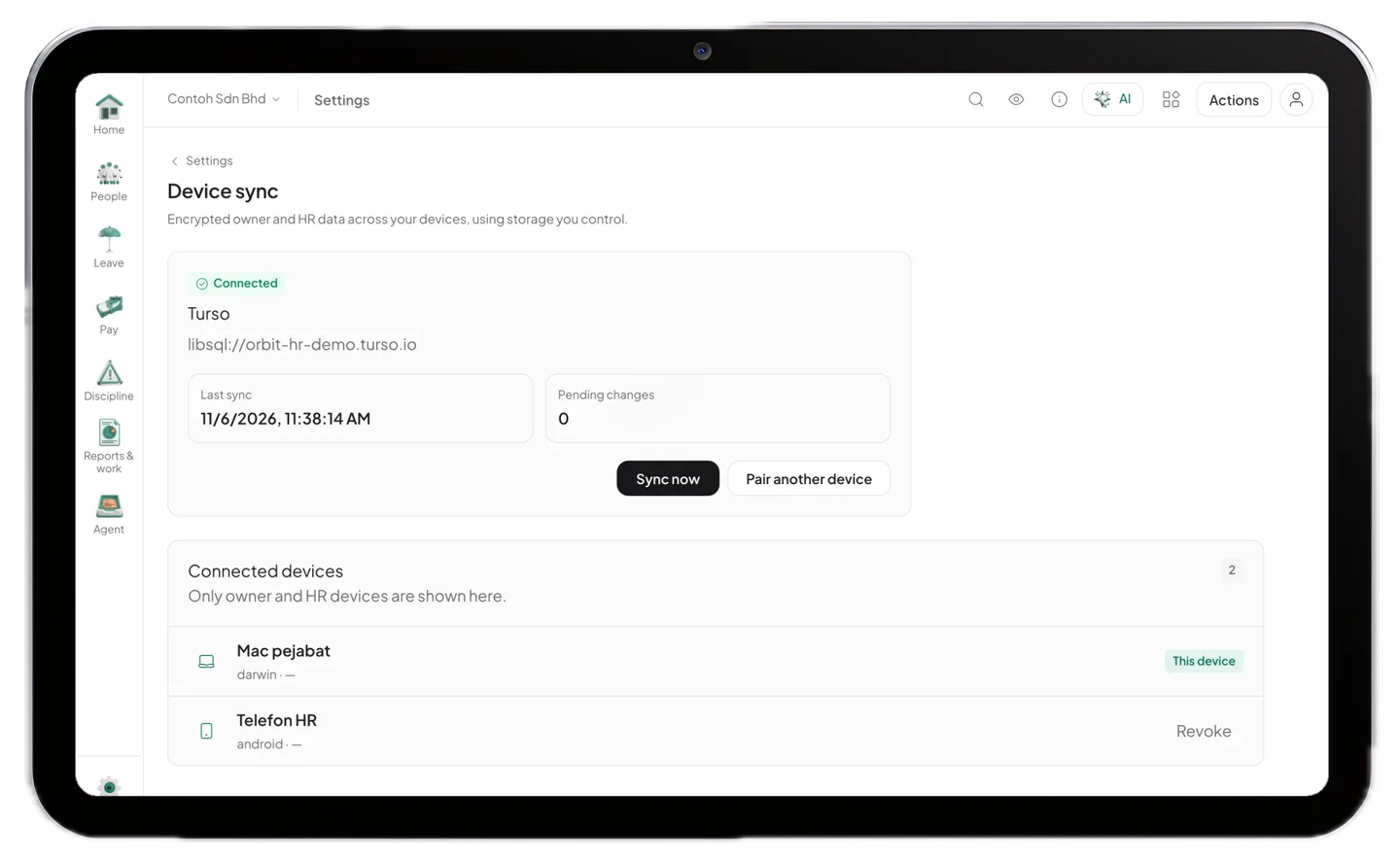
Step 3: How do I pair my phone or a second computer?
On the main computer, click Pair another device. Orbit HR shows a QR code and a pairing code. Both work once and expire in 90 seconds, so have the other device ready first.
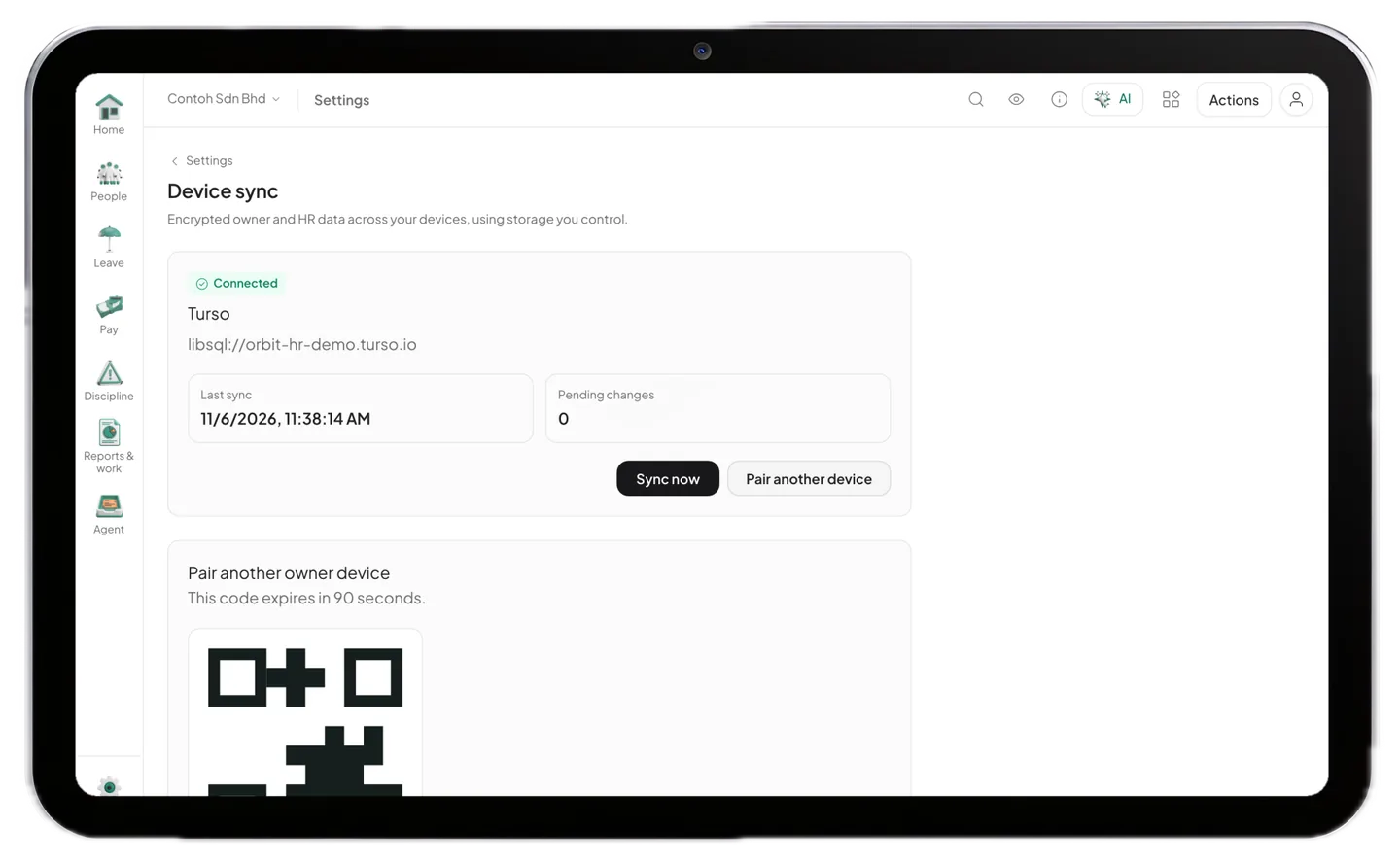
- Open Orbit HR on the new device. On the first screen, choose Join an existing company.
- On a phone, tap Scan QR image and point the camera at the QR on your computer. On a second computer, click Copy pairing code on the main computer and paste it into Pairing code.
- Enter the same workspace passphrase you set in Step 2.
- Tap Join workspace. The device downloads your company and opens it.
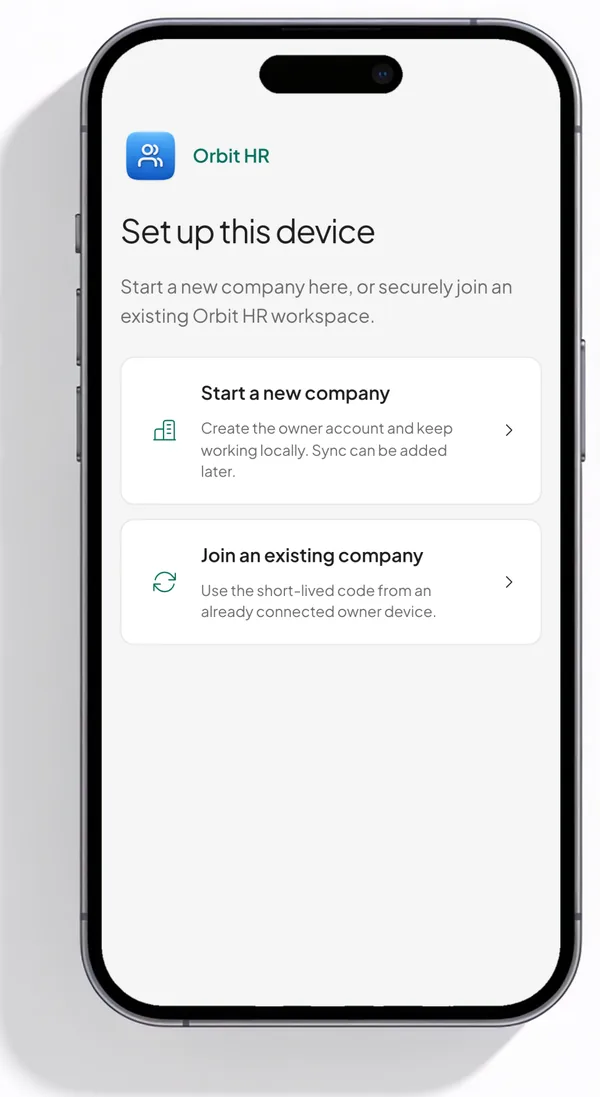
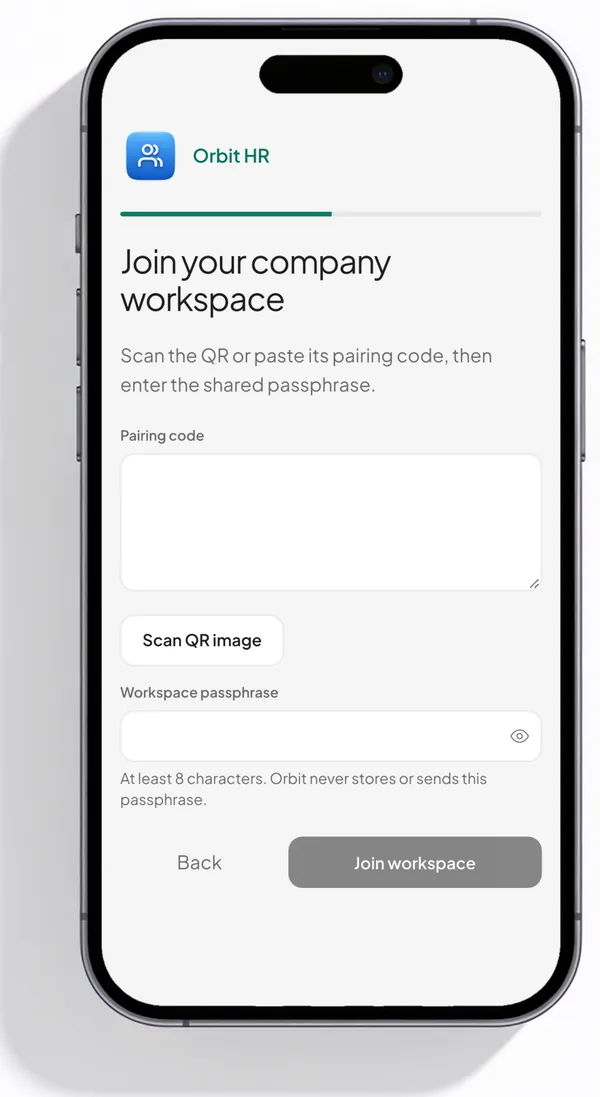
Join an existing company only appears on a device that has not been set up yet. Repeat this step for every owner or HR device you add.
How do I check that sync is working?
- On the main computer, open Settings, Device sync. The new device appears under Connected devices.
- Make a small change on one device, such as editing an employee's phone number.
- Wait about 20 seconds, or click Sync now, and check the change on the other device.
Pending changes shows how many edits are still waiting to upload. It drops back to zero once the device is online and synced.
What if sync does not work?
- The code has expired: click Create a new code on the main computer and scan again within 90 seconds.
- The passphrase is rejected: it must match the one set on the main computer exactly, including capital letters and spaces.
- The app says this workspace needs an update: update Orbit HR on that device, then sync again.
- Connect sync fails straight away: check the URL starts with libsql:// and that the token was copied in full, with no space at the end.
- Nothing syncs from a company: practice companies never sync. Switch to your real company first.
- Google Drive is greyed out: it needs extra setup that the standard download does not include. Use Turso.
- A device is lost or a staff member leaves: open Device sync and click Revoke next to that device. The key rotates, you set a new passphrase, and your other devices pair again with it.
What to remember
- One free Turso database per company carries encrypted changes between your devices.
- The workspace passphrase unlocks your data on every device and cannot be recovered, so store it safely.
- Pairing codes last 90 seconds and work once. Create a new one whenever you need it.
- Device sync is for owner and HR devices. Employees use the free Orbit Staff app instead.
Important
Turso is a third-party service that you sign up for and control. Its plans, limits and screens can change, so follow Turso's own documentation where it differs from this guide. Orbit HR encrypts your data before it leaves your device, but you remain responsible for keeping the Turso token and the workspace passphrase private, and for your obligations under the Personal Data Protection Act 2010 (PDPA).
Payroll that does this for you
Orbit HR keeps every device working offline and syncs only encrypted changes, so your employee data stays under your control.
RM 249.00 once, unlimited employees, no per-head fee. Orbit HR runs on your own Mac, Windows PC or phone and works offline, so employee data never leaves your office.