How does sync work in Orbit Finance?
Orbit Finance is local-first. Every device you use keeps its own full copy of the books, so it opens instantly and keeps working without internet. Sync keeps those copies in step: each change is encrypted on the device with your sync passphrase, sent to a small cloud database that you own, and pulled down by your other devices.
The cloud database is a free Turso database in your own name. Orbit never holds your data, and because the changes are encrypted before they leave the device, Turso cannot read them either. While a device is online it syncs about every 20 seconds, and you can press Sync now at any time.
What do you need before you start?
Set aside about 15 minutes for the first device and 2 minutes for each one after that.
- Orbit Finance installed on every device: Mac or Windows from the Downloads page, Android from Google Play, iPhone or iPad from the App Store.
- The device that already has your books, with the latest version installed.
- A free Turso account (turso.tech). You can sign up with GitHub or Google.
- A sync passphrase you will remember. Write it down somewhere safe: the same passphrase goes on every device, and it cannot be recovered if lost.
Step 1: How do you create your free sync database?
Do this once, on any computer with a web browser.
- Go to turso.tech and sign up for a free account.
- Create a new database. Give it a simple name such as orbit-books and pick the location closest to you (Singapore for Malaysia).
- Open the database and copy its URL. It starts with libsql:// and ends in .turso.io.
- Create a token for that database (the button is labelled Create Token, Get Token or Generate Token) and copy it. Keep it private: anyone with the URL and token can reach the database, although they still cannot read your encrypted books without the passphrase.
Step 2: How do you connect the device that has your books?
Start on the device where your books already live, usually your desktop.
- Open Orbit Finance and go to Settings > Sync & Backup.
- Choose the Manual tab.
- Paste the database URL into the first box and the auth token into the second.
- Type your sync passphrase.
- Click Connect. The badge changes to Connected, and the first upload starts.
- Wait until it says All changes synced. A large file of books can take a few minutes the first time. Only then add your other devices.
Step 3: How do you add a phone, tablet or second computer?
Do this on a fresh install. Do not create new books on the new device first: a device can only join if it has no other company of its own.
The link code needs Orbit Finance 0.36.15 or later on both devices. On an older version, choose URL and token on the join screen instead and paste the database URL and auth token from Step 1.
- On the device from Step 2, open Settings > Sync & Backup and click Link a device. A code and a QR appear. The code works for 90 seconds, so have the new device ready.
- Install Orbit Finance on the new device and open it. You see Welcome to Orbit Finance.
- Choose Join another device, not Set up new books.
- Keep Link code selected and paste the code. On a phone, scan the QR with the camera and copy the text it shows.
- Type the same sync passphrase. It is not inside the code.
- Tap Connect & pull books and wait while the books download, then sign in with the same username and password you use on the first device.
How do you keep devices in sync day to day?
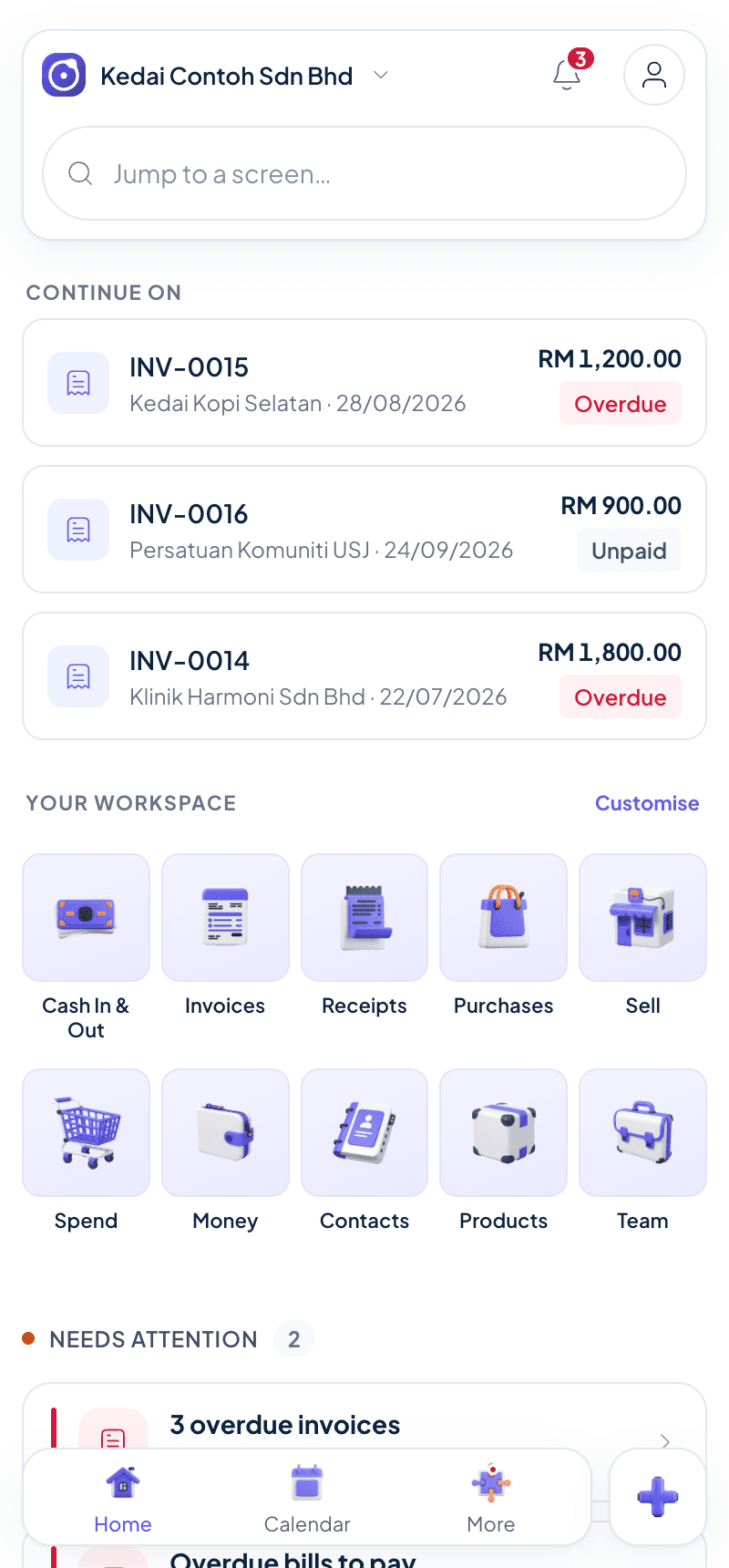
You do not need to do anything. Each connected device sends and receives changes about every 20 seconds while it has internet, and on its own when it reconnects after being offline. Settings > Sync & Backup shows All changes synced when a device is up to date, or a pending count while it still has changes to send.
If two devices change the same record, the later change wins. Different records never clash, so two people can work at once; just avoid editing the same invoice at the same moment, and let one person close a period or run year-end while the others wait for All changes synced.
What should you do if sync does not work?
Match the message you see with the fix below.
- "That workspace is empty": the first device has not uploaded yet. Finish Step 2 and wait for All changes synced, then try joining again.
- "Wrong sync passphrase for this workspace": the passphrase does not match the one used on the first device. Retype it carefully; it is case-sensitive.
- "That pairing code has expired": the 90 seconds ran out. Click Link a device again on the first device for a fresh code.
- "This device already has a different company": this device already has its own books. Join from a fresh install, or back up and remove the other company first.
- "This workspace belongs to a different company": the URL and token belong to another company's database. Check you copied the right database.
- Stuck on a pending count: check the device has internet, then press Sync now. If it stays, disconnect and connect again with the same three values.